Embedded Apple Pay
If you are using the Checkout page embedded into your own site via an iframe, you must register your domain with Apple Pay in order for it to function correctly. Follow the steps below to get up and running.
The steps below are only necessary if you are embedding our checkout page in an iframe. If you redirect your customers to our page, Apple Pay will just work out of the box.
If you are using the Checkout SDK (Embedded Checkout) instead, this page doesn't apply — the SDK's express component handles Apple Pay for you without a domain registration file.
Preparation
Before you can register your domain, you must download our Domain Registration file and host it on your website.
Apple Pay will not register your domain unless this file is present and accessible.
This special file tells Apple Pay that Monek is authorised to process payments on your behalf. Download it here:
Domain Registration File: apple-developer-merchantid-domain-association
This file must be placed in the following public location on your e-commerce website:
www.yourdomain.com/.well-known/apple-developer-merchantid-domain-association
We recommend verifying that the file is present and accessible by visiting the URL in your browser to ensure the file can be downloaded.
Register your domain
Once the above file is in the correct location, you must log in to the portal. Navigate to the Apple Pay Domain Registration section of the Integrations tab and click the (+) icon to start:
If you don't see the Integrations tab or the Apple Pay registration section, please contact support to ensure this feature is enabled on your account.

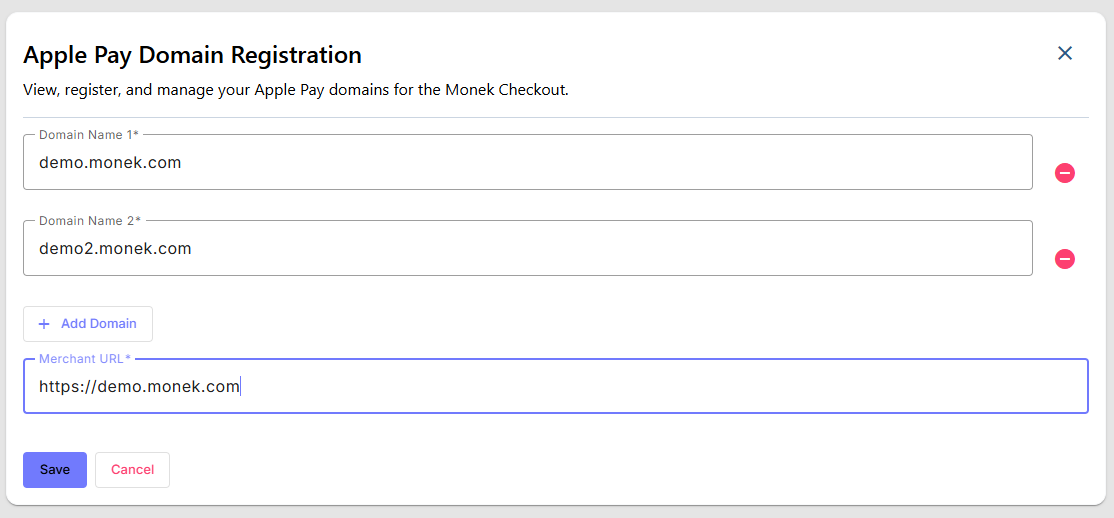
Fill in the form by adding any domains (including subdomains) associated with your store. You also need to enter the homepage URL of your website.
When you click "Save", we will send a request to Apple Pay to register your domain. As long as Apple Pay is able to find the Domain Registration file in the correct location on your website, the domain should be registered and appear in the list.
Embed the Checkout page
To display the Apple Pay button in Safari when embedding the checkout in an iframe,
you must include the allow="payment" attribute on the iframe element.
Without this attribute, Apple Pay will not appear even if your domain is correctly registered.
You can now embed our checkout page in an iframe on your website, providing a seamless checkout experience for your customers. This will include the Apple Pay button as an express checkout option.
Troubleshooting
Apple Pay button not appearing
Check the following:
- Device compatibility: Apple Pay only works on Safari on iOS 12+ and macOS 10.12+. Verify your test device is supported.
- Domain registration: Confirm your domain appears in the Apple Pay Domain Registration list in the Monek Portal.
- Iframe attribute: Ensure your iframe includes
allow="payment"attribute:<iframe src="..." allow="payment" ...></iframe> - Domain registration file: Verify the Domain Registration file is accessible at
www.yourdomain.com/.well-known/apple-developer-merchantid-domain-associationby visiting the URL in your browser. - HTTPS required: The page must be served over HTTPS. Apple Pay will not function on HTTP.
Domain registration failed
If you see an error when attempting to register a domain:
- Ensure the Domain Registration file is placed in the correct location and is publicly accessible.
- Wait a few moments and try registering the domain again (DNS and server changes can take time to propagate).
- Check that the domain name is correctly spelled and matches your website URL.
- Contact Monek Support if the issue persists.
Apple Pay works on redirect but not in iframe
If Apple Pay works when you redirect users to the Monek checkout page but not when embedded in an iframe, the issue is usually one of the following:
- Missing
allow="payment"attribute on the iframe element - Domain not registered with Apple Pay
- Domain registration file not in the correct location
Verify each of these points against the guidance above.